Exploring Copilot's Features in Classic Outlook: A User's Experience and Decision to Disable
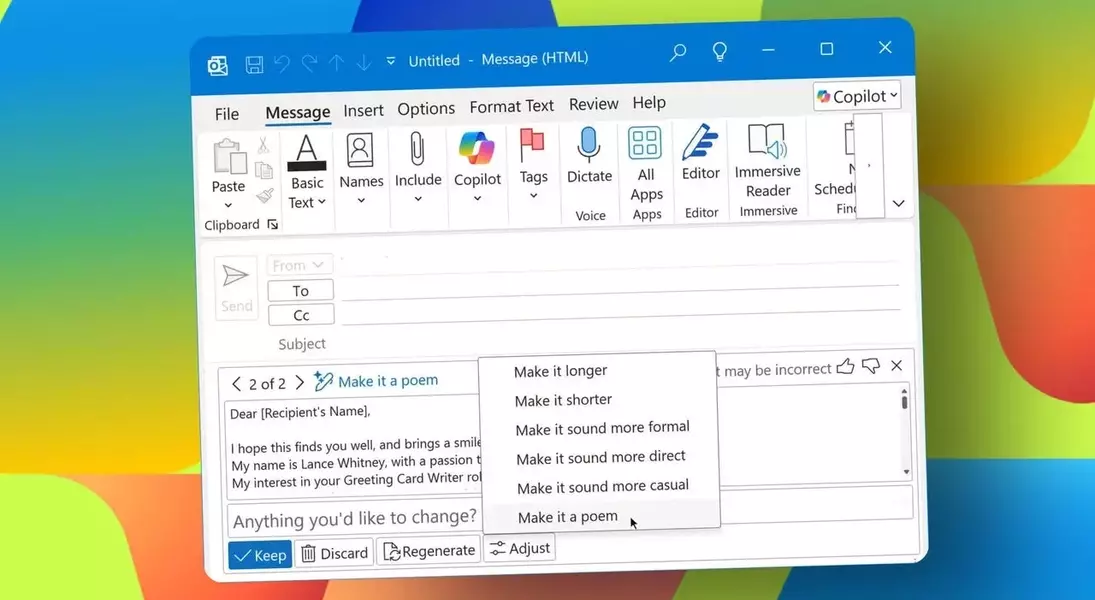
Mastering Copilot in Classic Outlook: A Journey from Integration to Deactivation
Unveiling Copilot's Role in Email Drafting
Upon initiating a fresh email in Outlook, users are met with a prompt to engage Copilot for content generation. By activating a specific keyboard shortcut, an input field emerges, allowing for a descriptive outline of the desired email. For instance, crafting a cover letter for a freelance technology reporter position, specifying prior experience with reputable tech publications, demonstrates Copilot's ability to interpret and execute intricate requests.
Analyzing the AI-Generated Draft
Copilot swiftly produces a draft email based on the user's input. While functional, these initial drafts often lack the nuanced style and personal touch of human composition. They tend to be generic, necessitating substantial revisions to align with the sender's unique voice and specific communication needs. This highlights a common challenge with AI-generated text: its inherent inability to perfectly replicate individual expression.
Exploring Diverse Content Variations
Beyond initial drafting, Copilot offers the flexibility to refine generated content. Users can request alternative versions of the email, adjusting parameters such as length, formality, or tone. Options range from concise to elaborate, formal to casual, and even include a poetic mode. This versatility allows for experimentation with different communication styles to find the most suitable output for a given context.
Selecting and Customizing the Preferred Version
Among the various options, a casual tone often proves most effective for personal and less formal communications, fostering a friendlier and more approachable interaction. However, even these refined drafts require careful editing to infuse genuine personalization. While Copilot can serve as a useful starting point by structuring information, the ultimate satisfaction and ease of communication often come from direct human authorship.
Leveraging AI for Email Responses
Copilot's capabilities extend to assisting with email replies. When responding to an existing message, users can again invoke the AI to generate a draft. By describing the desired response, such as inquiring about specific policies for an event, Copilot can formulate a relevant and coherent reply, offering diverse variations to suit the context and user's intent.
Refining Responses Through Varied Tones
Similar to drafting new emails, Copilot offers options to alter the tone of a generated response. This includes making it more concise, more detailed, or even transforming it into a creative format like a poem. Such flexibility allows users to tailor their replies to match the specific conversational context, adding a unique flair when appropriate.
Streamlining Information with Email Summaries
Copilot can also condense lengthy emails into concise summaries, extracting key details for quick comprehension. While useful for gleaning essential information rapidly, these summaries might be overly brief, potentially omitting important nuances. Users can provide feedback on the summary's effectiveness, prompting the AI to refine its output for greater detail or clarity.
Deactivating Copilot in Outlook: A User's Choice and Technical Steps
Despite its functionalities, some users may find Copilot's constant presence in Outlook intrusive or unnecessary for their workflow. The decision to disable the AI is a personal one, often driven by a preference for direct human composition or a desire to streamline the interface. The process of deactivation, however, can be unexpectedly complex, as direct disablement options are not always available within the classic Outlook application itself.
The Indirect Path to Disabling Copilot in Classic Outlook
To fully deactivate Copilot in classic Outlook, users typically need to access the settings through other Outlook versions, such as the new Windows application, web interface, or mobile apps. By navigating to the Copilot settings within these platforms, users can toggle off the AI for their connected accounts. This ensures that the AI assistant no longer appears in the classic Outlook interface once the changes synchronize across platforms. This multi-step process, while functional, highlights a current inconvenience in managing AI integration across Microsoft's diverse application ecosystem.